
Saved layouts & backup
You can save your arrangements under a name and come back to them later. There are two kinds of saved layout, matching the two buttons in the top bar.
| Button | What a saved layout keeps |
|---|---|
| Panes | Which view each pane shows, how the panes are split, and where the dividers sit. |
| Layout | Screen layout, page zoom, compact mode and both column widths. |
In either dialog, choose a saved layout and Apply it, Update it with your current arrangement, or Delete it. To save a new one, type a name and use the save button.
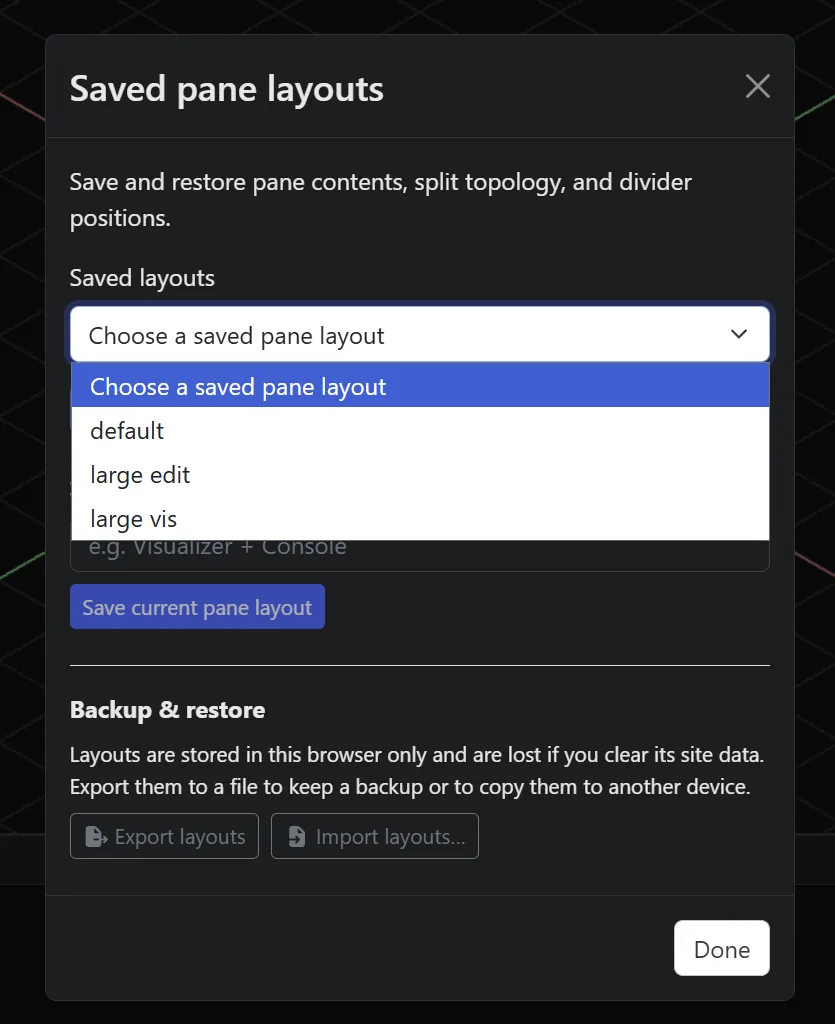
Where layouts are stored
Layouts are stored in your browser, not on the UGS computer. That has two effects:
- They belong to one browser on one device. A browser is counted per address, so
localhost:8080on your PC and192.168.x.x:8080on a tablet each keep their own set. That suits a large monitor and a small tablet that need different layouts. - Clearing the browser's site data erases them.
Back up and restore
Both dialogs have a Backup & restore section at the bottom.
Export layouts downloads a file named ugs-dashboard-layouts-<date>.json. It contains:
- your saved pane layouts
- your saved dashboard layouts
- this device's current settings: screen layout and column widths, zoom, font sizes, the current panes, and plugin window sizes
Import layouts… reads such a file and shows what it contains, so you can choose what to bring in:
- Saved pane layouts and Saved dashboard layouts are added. A layout with the same name as an existing one replaces it.
- This device's current settings overwrite the settings on the device you are using. It is unchecked by default, so importing from a different device won't change your zoom or column widths unless you choose it.
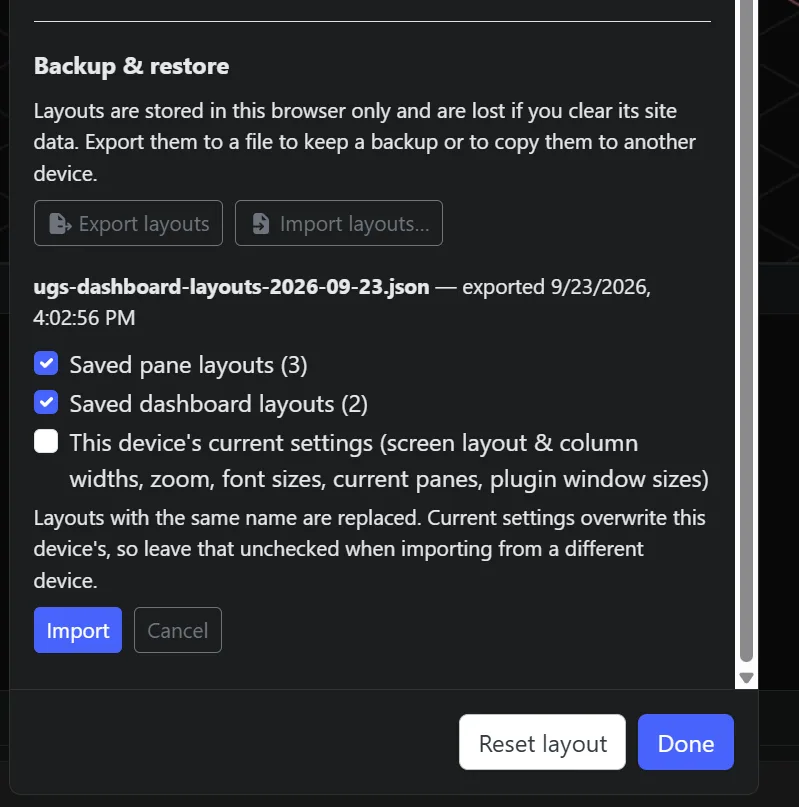
The Dashboard reloads after an import so everything takes effect. Anything in the file that isn't valid is ignored and counted, and files from a newer Dashboard version are refused.
Moving layouts between devices
Export on one device and import on the other. Leave current settings unchecked if the two screens are different sizes.